Android 5.0 Lollipop: 5 Key Features Added To Latest Android Version

February 15, 2015

Google announced the Android 5.0 Lollipop, the latest major version of the company’s mobile operating system, last week, along with the highly anticipated Nexus 6 smartphone, Nexus 9 tablet and a new streaming video device called the Nexus Player.

The Android 5.0 Lollipop, which was first showcased at the Google I/O conference in June as Android L, comes with many new features, such as a new material design user interface and updated notification functions. The new Android version is expected to be available for older Nexus models, including the Nexus 5, Nexus 7, Nexus 10 and Google Play Edition devices.


Here are five new key features of the Android 5.0 Lollipop:

1. WebView


WebView allows third party applications to display web content without launching the browser. The feature makes the update process independent from the update schedule of original equipment manufacturers, making it convenient for users of devices whose OEMs are slow in rolling out updates.

 2. Multi-User Support for Phones


The new Android 5.0 Lollipop offers multi-user support, which was only available for tablets, for phones. The first user of the phone will be the owner of the device and this person can decide if others can use the handset. The feature allows every profile to have its own welcome screen, application settings and wallpapers, and users can switch profiles by pressing the head button on the top right corner of the screen.

3. Application Pinning


Users of Android 5.0 Lollipop can lock any running application by applying a pin number or pattern. If the owner of the device has any protections enabled on the device, other users cannot access other apps without breaching the phone's security system.

4. Application Back Up


Users will now be able to transfer all relevant settings and apps to new Android devices through Near Field Communication at the time of initial login. Apps that are to be downloaded will be displayed as gray-colored icons, which will launch the Play Store listing when tapped.

5. Two Factor Authentication from Initial Login


Users will now be able to enter the time-sensitive security code right on the login screen itself. In previous versions of the OS, the account login screen used to open up a browser window to let users enter the code.
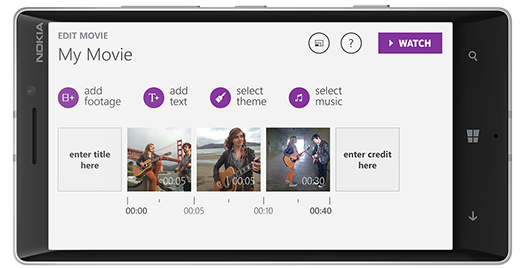


Microsoft launched new video editing app for Windows Phone

February 15, 2015

Microsoft launched new video-editing app for Windows Phone

New Video Editing app for Windows tablets & Windows Phone launched From Microsoft Company. Video app can download free from Windows Store & Windows Phone Store. This video editing aap works on lumia tablet, surface tablets and lumia smartphones running windows 8.1. Microsoft plans available to all devices running Windows Phone or Windows 8.1.


Video Editing app You can Movie Creator lets you combine videos, photos, music, and even cinemagraphs (selectively animated photographs) into movies. edit the length of your footage, move clips to different places on your video timeline, captions, add text cards and various filters. First, Microsoft already has a similar app for Windows Phone called Video Tuner — why release another with similar functionality?

You can also possible to pan, rotate, and zoom, like a selection of branded themes featuring characters from popular DreamWorks animated movies like Madagascar and Kung Fu Panda. It only works on the company’s phones and tablets (Lumias and Surfaces), and we’ve updated the article to reflect this.

You can even pan, zoom, and rotate. Your final result can be anywhere from a few seconds to as long as a few hours. Video editing apps usually require in-app purchases to unlock longer videos, but Movie Creator allows free editing of up to 25 videos, photos or cinemagraphs with no length limitations. Microsoft adopting a totally different strategy which has culminated with the free release of Microsoft Office on mobile devices. Microsoft should build apps for Windows Phone and Windows, not just Lumia and Surface.


Top 13 Windows Key Shortcuts - CrazyTechGuys

August 20, 2014

We are gonna share Top 14 shortcuts utilize the Windows Key  which is located at the lower left hand corner and, the lower right hand corner of your keyboard between the Ctrl and Alt keys. If it is not there, then you do not have a Windows keyboard.
Ctrl  Windows Key Alt

The keyboard image effects that you see above and below are being controlled through an external .css (Cascading Style Sheet) file. These are not actual images, but a carefully thought out list of CSS attributes that gives the appearance of a key on a Windows keyboard.
  1.  Windows Key + E
    Opens a new Explorer Window. Probably one of the hottest Windows keyboard shortcuts. This one gets a lot of hoorahs!
  2.  Windows Key
    Displays the Start Menu.
  3.  Windows Key + D
    Minimizes all windows and shows theDesktop.
  4.  Windows Key + D
    Opens all windows and takes you right back to where you were.
  5.  Windows Key + F
    Displays the Find all files dialog box.
  6.  Windows Key + L
    Lock your Windows XP computer.
  7.  Windows Key + M
    Minimizes all open windows.
  8.  Windows Key + Shift + M
    Restores all previously open windows to how they were before you Minimizedthem.
  9.  Windows Key + R
    Displays the Run command.
  10.  Windows Key + F1
    Displays the Windows Help menu.
  11.  Windows Key + Pause/Break
    Displays the Systems Properties dialog box.
  12.  Windows Key + Tab
    Cycle through the buttons on the Task Bar.
  13.  Windows Key + U
    Displays the Utility Manager with accessibility options; Magnifier, Narrator and On-Screen Keyboard.
  14. Alt + Tab
    Toggle (switch) between open windows.
  15. Ctrl + Prtsc
    to Take a Screen Shot of Present Desktop Screen which includes all Opened windows.
  16. Ctrl + D
    to to Add Bookmart of current Website Link.


Steps to Change Windows XP Logon Screen Background with Yours

July 23, 2014
-->


You can put your favorite image or picture in the background of the logon screen by doing the following methods.

First Save an Image which is created to put Logon Screen background in C:/ location (Example: C:/My_dealdimer.bmp)

How to Get :
  1. Click the Start button and select “Run
  2. In the “open” field, type regedit and click ok
  3. In the registry editor, navigate to HKEY_USERS\.DEFAULT\CONTROL PANEL\DESKTOP and double-click the string “wallpaper
  4. Enter the full path and filename of the .bmp image that you want to use as background (the image must be in .bmp format)
  5. Click “ok” and close the registry editor

Note: Should Restart the computer for changes.

If you want to see the background set in tiled effect with the bitmap then


Follow the below steps :

  • Click the Start button and select “Run
  • In the “open” field, type regedit and click ok
  • change the string HKEY_USERS\.DEFAULT\CONTROL PANEL\DESKTOP\TILEWALLPAPER to “1″ instead of “0
  • Click “ok” and close the registry editor


-->